Operator’s Verdict: Download WSJT-X free, connect your radio via USB, tune to 14.074 MHz USB, and within minutes you’ll be making worldwide contacts automatically. FT8 works with 5–50 watts and a wire antenna. The software handles the exchange — you just click to confirm. The most accessible entry point to HF DX in amateur radio history.
Why FT8 Changed Everything
Before FT8 (introduced in 2017), making an international HF contact required: good propagation conditions, a reasonable antenna, 100+ watts of power, and the skill to navigate crowded SSB pileups or send accurate CW at 15+ WPM.
FT8 changed the calculus entirely. A station running 5 watts into a wire antenna can make contacts with stations across the Atlantic under conditions where SSB operators hear nothing but noise. The weak-signal capability is genuinely remarkable — FT8 can decode signals 20 dB below the noise floor, a level that is literally inaudible to the human ear.
The result: an operator who passes their licence exam, puts up a basic wire antenna, and downloads WSJT-X can make their first intercontinental contact within 30 minutes of sitting down at the radio. This accessibility drove an enormous increase in HF activity worldwide.
Pro Tip: Check DXRadar’s best bands now and your band-specific pages before heading out — live propagation data beats any static forecast.
Setting Up WSJT-X
Download and Install
WSJT-X is free and available from: wsjt.sourceforge.io
Available for Windows, macOS, and Linux. Install and launch.
Configure Your Callsign and Grid
In WSJT-X, go to File → Settings → General:
- My Call: Enter your callsign (e.g., KD9ABC)
- My Grid: Enter your 4-character Maidenhead grid (e.g., IO91) — use arrl.org/grid-squares to find yours
Configure Radio Interface
Go to File → Settings → Radio:
- Rig: Select your transceiver from the list (or “Hamlib NET rigctl” for generic control)
- COM Port / Device: Select the serial port your radio is connected on
- Mode: USB, Sideband
Go to File → Settings → Audio:
- Soundcard Input: Select your radio’s audio output (USB audio codec if your radio has USB, or your external soundcard)
- Soundcard Output: Select your radio’s audio input
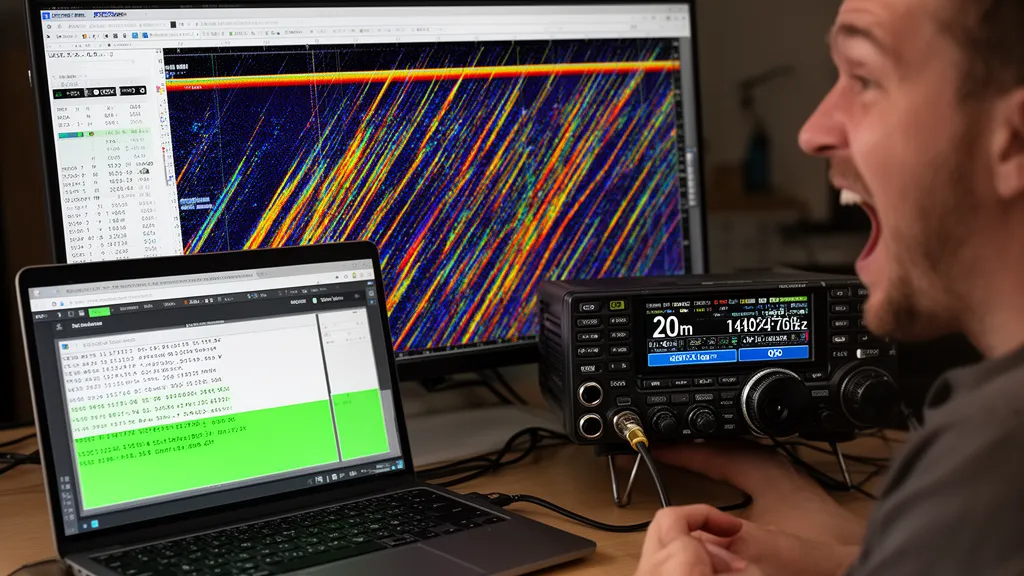
Test by going to 14.074 MHz USB and watching the WSJT-X waterfall — you should see multi-coloured diagonal lines representing FT8 signals from other stations.
Connect Your Radio
Radios with USB audio (easiest): Icom IC-7300, IC-7610, IC-9700, Yaesu FT-991A, FT-710, Kenwood TS-890. These radios present a USB audio interface to your computer — one USB cable handles both audio and rig control (CAT). No additional hardware needed.
Older radios: Require an external soundcard interface (SignaLink USB, RigBlaster, or DIY cable). These connect the radio’s audio out to your soundcard input and the audio output to the radio’s microphone input, with PTT (transmit) switching.
Making Your First FT8 Contact
Step 1: Tune to an FT8 Frequency
Set your radio to 14.074 MHz, mode USB. In WSJT-X, select Mode → FT8.
Watch the waterfall — you’ll see diagonal stripes appearing on the display. Each stripe is an FT8 signal. The bottom of the screen shows decoded messages as text.
Step 2: Understand the 15-Second Cycle
FT8 operates in strict 15-second intervals synchronised to UTC:
- Even UTC seconds (0:00, 0:15, 0:30, 0:45): Odd (first) sequence
- Odd UTC seconds (0:07, 0:22, 0:37, 0:52): Even (second) sequence
Your clock must be within ±2 seconds of accurate UTC. Enable internet time synchronisation on your computer (Windows: Settings → Time → Sync now; macOS: System Preferences → Date & Time → Set date and time automatically).
Step 3: Answer a CQ
When you see a CQ call in the decoded messages at the bottom of WSJT-X:
CQ W5XYZ EM72Double-click on this line. WSJT-X will automatically:
- Start transmitting when your sequence begins
- Send: “W5XYZ KD9ABC IO91” (their call, your call, your grid)
- Wait for their response
- Exchange signal reports automatically
- Send 73 to close
Watch the Tx (transmit) window — it shows what WSJT-X is sending. Watch the Band Activity window for their responses.
Step 4: Log the Contact
When WSJT-X shows “RR73” (acknowledge and 73), the contact is complete. Click Log QSO in WSJT-X to add it to your log with all details automatically filled in.
What You See on the Waterfall
The WSJT-X waterfall shows frequency (horizontal) vs. time (vertical, newest at bottom). Each FT8 signal appears as a slightly slanted column of colour. Multiple signals appear simultaneously across the audio passband (roughly 200–2700 Hz above your dial frequency).
The decoded text at the bottom of the screen shows callsigns, grids, and signal reports. Signals highlighted in red are calling CQ and available to answer. Signals highlighted in green are already in contact with another station.
FT8 and Propagation: The Live Indicator
Because FT8 operates automatically and stations decode each other’s signals continuously, FT8 reception reports feed directly into PSKReporter and DXRadar’s propagation map. When you’re running FT8, you’re simultaneously contributing to the live propagation picture:
- Every signal you decode from a distant station is reported to PSKReporter
- PSKReporter feeds into DXRadar’s propagation map as a spot line between your location and theirs
This means FT8 operators are simultaneously making contacts and building the real-time propagation map that everyone uses to see what bands are open. The propagation map you see on DXRadar is substantially powered by the FT8 community.
Check DXRadar’s propagation map before your FT8 session to see which direction’s bands are active. When 20m shows many transatlantic lines, your FT8 session will include plenty of US–Europe contacts.
Frequently Asked Questions
What is FT8 and how does it work?
FT8 (Franke-Taylor design, 8-FSK) is a digital radio mode designed for weak-signal HF communication. It uses 8-tone frequency-shift keying with strong error-correction coding, transmitted in 15-second frames synchronised to the UTC clock. Each FT8 message carries 77 bits of information — enough for callsigns, grid squares, and signal reports. The mode can decode signals down to -20 dB SNR, far below what human hearing can detect. A standard FT8 QSO (contact) consists of 4 message exchanges and takes 75 seconds to complete. FT8 is included in the free WSJT-X software package developed by Nobel laureate Joe Taylor (K1JT) and Steve Franke (K9AN).
What equipment do I need to start FT8?
To get started with FT8 you need: (1) HF transceiver (any modern all-mode HF radio — Icom, Yaesu, Kenwood), (2) An antenna (even a basic wire dipole works), (3) A computer (Windows, macOS, or Linux — WSJT-X runs on all), (4) Audio interface connecting your radio to your computer — either a USB cable if your radio has built-in USB audio (IC-7300, IC-7610, FT-991A, TS-890) or an external soundcard interface like the SignaLink USB for older radios. The total cost to add FT8 to an existing HF station can be as low as $30 (USB cable) if your radio has built-in USB audio, or $100–150 for an external interface.
What frequency is FT8 used on?
FT8 operates on specific standard frequencies within each amateur band. Key frequencies: 80m = 3.573 MHz; 60m = 5.357 MHz; 40m = 7.074 MHz; 30m = 10.136 MHz; 20m = 14.074 MHz; 17m = 18.100 MHz; 15m = 21.074 MHz; 12m = 24.915 MHz; 10m = 28.074 MHz; 6m = 50.313 MHz. These are USB dial frequencies — your radio is tuned to these frequencies in USB mode, and the software generates and decodes audio tones within approximately 200–3,000 Hz above the dial frequency. 20m FT8 (14.074 MHz) is by far the most active global FT8 frequency.
Is FT8 easier than voice SSB for contacts?
Yes, significantly. FT8 advantages for beginners: (1) No voice communication required — the software sends and receives messages automatically; (2) Works with much weaker signals than SSB, so contact rate is higher with modest equipment; (3) Structured exchange format eliminates uncertainty about what to say; (4) Automated logging of contact details; (5) Works even when you can barely hear anything on the band — the software decodes what your ears can’t. Disadvantages: FT8 contacts are brief and formulaic — callsigns, grid, signal report, confirmation. For conversations and casual rag-chewing, SSB voice or digital modes like JS8Call are better. FT8 is optimised for efficiency, not conversation.
How many contacts can I make with FT8 per hour?
In a typical operating session on an active band (20m during daylight), an operator running 50 watts with a dipole can make 10–30 contacts per hour using FT8. During special events or under excellent propagation conditions, rates can reach 50–100 per hour. Compare this to SSB voice where even an experienced operator might make 20–40 contacts per hour in a contest, and a beginner might take 5–10 minutes per contact. FT8’s automated exchange and fast 15-second frame timing allows very high throughput. The software handles both the mode of calling (answering someone else’s CQ) and auto-sequencing the exchange — your role is primarily to confirm each exchange step by clicking the responding station.